Failing a UK broadcast QC isn’t a simple settings error; it’s a systemic failure in understanding how files are technically interpreted, not just how they look on screen.
- Your file’s integrity is only as strong as its cryptographic hash; obsolete MD5 checks are a critical point of failure.
- Visual « gamma shifts » in QuickTime are a display anomaly; trusting your scopes and broadcast-calibrated monitors is non-negotiable.
- « Illegal colours » are not an aesthetic judgment but a hard technical violation of signal voltage limits (EBU R103).
Recommendation: Adopt a zero-tolerance workflow. Trust calibrated scopes over your screen, use SHA-256 for all file verification, and master the broadcaster’s specific AS-11 UK DPP profile before every export.
For any post-production assistant, there is no email more dreaded than « QC FAILED ». It signifies more than a simple mistake; it represents a costly delay, a resource-draining re-render, and a potential loss of confidence from the client or broadcaster. The immediate reaction is to double-check the export settings, ticking off the usual boxes: ProRes, 1080p, 25fps, audio levels. This checklist approach, while necessary, is dangerously incomplete. It treats delivery as a clerical task rather than what it is: a mission-critical engineering discipline.
The common advice to « follow the spec sheet » is the beginning, not the end, of your responsibility. The real failures, the ones that slip past diligent assistants, occur at a deeper technical level. They are not about visible errors, but about systemic weaknesses in the file’s structure and metadata that only automated playout servers and rigorous QC processes can detect. This includes issues like colour space misinterpretation, which can make a perfect grade look washed out on some systems, or the use of outdated file verification methods that offer a false sense of security.
But what if the key to passing QC every time wasn’t about finding a magic preset, but about adopting the mindset of a playout centre operator? It’s about understanding the fundamental principles of signal integrity, cryptographic verification, and the strict technical lineage of broadcast standards. It’s about knowing *why* a file is rejected, not just that it was. This guide abandons superficial advice to dissect the core technical pillars of UK broadcast delivery. We will move beyond the settings and into the science of creating master files that are not just visually correct, but technically flawless and resilient.
This article provides a detailed breakdown of the critical technical standards and common pitfalls in delivering master files for UK television and web platforms. The following sections will equip you with the knowledge to ensure your deliveries are right the first time, every time.
Table of Contents: A Guide to Flawless UK Broadcast Delivery
- Why ProRes 422 HQ is the Industry Standard for Master Delivery?
- How to Verify a Master File Integrity Before Deleting the Project?
- AS-11 vs DPP: Which File Format Does Your UK Broadcaster Require?
- The Export Error That Makes Your Video Look Washed Out on QuickTime
- How to Create a Textless Master for International Distribution?
- Why Are Illegal Colours Rejected by UK Broadcasters Even If They Look Good?
- Why High Bitrates Hurt Your SEO and User Experience?
- How to Encode Video for Streaming to Avoid Buffering on Mobile Data?
Why ProRes 422 HQ is the Industry Standard for Master Delivery?
The selection of Apple ProRes 422 HQ as a delivery standard is not arbitrary or based solely on its visual quality. It is an engineering decision rooted in workflow integrity, computational efficiency, and generational stability. While visually lossless to the naked eye, ProRes 422 HQ is a 10-bit intra-frame codec, meaning each frame is compressed independently. This is fundamentally different from inter-frame codecs like H.264, which rely on preceding and subsequent frames for data, making them computationally intensive to decode and prone to errors in a fast-paced broadcast environment.
The « HQ » designation is critical. It signifies a higher data rate, which is essential not just for initial quality, but for providing sufficient data headroom for the inevitable re-encoding and transcoding that occurs within the broadcast chain. For instance, ProRes 422 HQ maintains a roughly 50% higher bitrate than standard ProRes 422 for the same resolution and frame rate. This extra data is the insurance policy that protects the signal’s integrity through multiple processing stages, from ingest and QC to playout and archiving.
Furthermore, ProRes is designed for post-production environments. It is less demanding on CPU resources for decoding compared to delivery-focused codecs like HEVC (H.265). A broadcast playout server must be able to handle multiple streams simultaneously for QC and transmission; a codec that requires significant processing power introduces a point of failure. ProRes 422 HQ strikes the optimal balance between file size, robust image quality, and, most importantly, the processing efficiency required for a stable, zero-failure broadcast workflow.
Choosing ProRes 422 HQ is therefore not just about delivering a « high-quality file »; it’s about delivering a technically robust, stable, and efficient asset that seamlessly integrates into the complex broadcast infrastructure.
How to Verify a Master File Integrity Before Deleting the Project?
Once a master file is exported, the final, non-negotiable step before archiving or deleting the source project is verifying its integrity. A simple visual spot-check is insufficient. Digital files can suffer from silent corruption during transfer or storage. The only way to guarantee a bit-for-bit perfect copy is through cryptographic checksums. However, not all checksum algorithms are created equal, and using an outdated one is as dangerous as using none at all.
For years, MD5 was the de facto standard. It is fast and simple. However, it is now considered cryptographically broken. Malicious or even accidental « collisions »—where two different files produce the same MD5 hash—are a real and present danger. An analysis of checksum vulnerabilities shows that as of 2024, MD5 collisions can be engineered in under a second, rendering it completely unsuitable for professional archival or broadcast verification. Relying on MD5 provides a false sense of security that will be rejected by any modern, rigorous QC process.
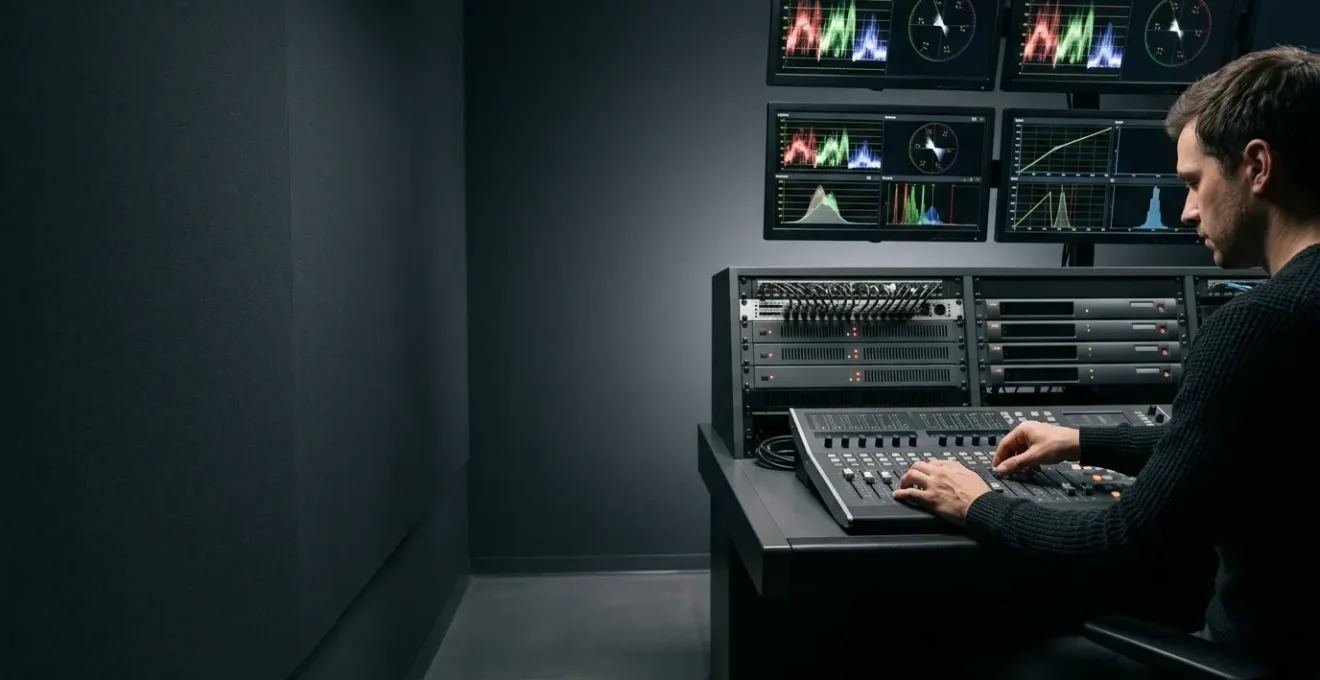
This image demonstrates the focus and precision required during the file verification process, where digital integrity is confirmed at a machine level.

The industry standard for secure file verification is the SHA-256 algorithm. It produces a longer, more complex hash that is currently resistant to collisions. When you deliver a master file to a broadcaster, you should also provide its SHA-256 checksum. Their ingest system will run its own SHA-256 check on the file it receives. If the two hashes match, it is a mathematical certainty that the file has not been altered or corrupted in transit. This process removes all ambiguity and provides an auditable, definitive proof of integrity.
A comparative analysis of common algorithms clearly highlights the superior security of SHA-256 for this critical task, as outlined by a deep-dive from the Digital Preservation Coalition.
| Algorithm | Hash Length | Speed | Security Level | Best Use Case |
|---|---|---|---|---|
| MD5 | 128-bit (32 hex) | Fastest | Low (vulnerable) | Quick integrity checks, non-critical archival |
| SHA-1 | 160-bit (40 hex) | Fast | Deprecated | Legacy systems only |
| SHA-256 | 256-bit (64 hex) | Moderate | High | Professional archival, broadcast masters |
| CRC32 | 32-bit | Very Low | Very Low | Error detection in transmission |
Never delete a project based on a successful MD5 check. Only after confirming a perfect SHA-256 hash match between your source master and the delivered copy can you confidently consider the delivery complete and the project safe to archive.
AS-11 vs DPP: Which File Format Does Your UK Broadcaster Require?
Understanding the distinction between AS-11 and DPP is crucial for any delivery to a UK broadcaster. They are not competing formats but are part of the same standardisation effort led by the Digital Production Partnership (DPP). The DPP, an initiative founded by the UK’s public service broadcasters (BBC, ITV, Channel 4), was created to streamline the transition from tape-based to file-based delivery. Its primary output is a set of common technical and metadata standards for programme delivery.
The core of this standard is the AS-11 file format. AS-11 is a specific « constraint model » of the MXF (Material Exchange Format) file wrapper. Think of MXF as a generic shipping container; AS-11 defines exactly what can go inside that container and how it must be labelled for UK broadcast. This includes specifying the video codec (like AVC-Intra 100) and, most importantly, a standardised « shim » of metadata. This metadata contains everything from the programme title and episode number to technical details and rights information, all in a machine-readable format.
As Kevin Burrows, CTO at Channel 4 and DPP Technical Standards Chair, stated, this unification is key:
Having one set of standards for file-based delivery across the industry is of huge benefit in ensuring ease of exchange and compatibility
– Kevin Burrows, CTO Broadcast and Distribution, C4 and DPP Technical Standards Chair
When a broadcaster asks for a « DPP file, » they are asking for a file that complies with the AS-11 UK DPP specification. This means you must use software that can correctly create the AS-11 MXF wrapper and, critically, embed the correct DPP metadata. This is not optional. As Channel 4’s specification makes clear, the era of flexible deliveries is over. Since 2017, all programmes must be delivered as a compliant file and will be rejected if they fail the automated QC process. Simply exporting a ProRes file and renaming it is a guaranteed failure. You must use a dedicated export preset or third-party tool designed for creating AS-11 UK DPP compliant files.
Therefore, the question is not AS-11 *or* DPP. The requirement is to deliver an AS-11 file that adheres to the DPP’s specific metadata and technical standards. Always confirm the exact version of the specification required by the broadcaster, as these standards are periodically updated.
The Export Error That Makes Your Video Look Washed Out on QuickTime
One of the most common and frustrating issues for a post-production assistant is exporting a perfectly graded master file, only to have it appear flat, de-saturated, or « washed out » when previewed in QuickTime Player. This often leads to a panic-induced re-grade or the application of a « compensating LUT, » both of which are incorrect and will cause your file to fail QC. This phenomenon is known as a « gamma shift, » and it is a display issue, not a file issue.
The root cause lies in how different software interprets colour metadata. Professional editing and grading software (like DaVinci Resolve, Premiere Pro, or Avid) operates within a controlled colour management environment, typically set to the broadcast standard of Rec. 709 with a gamma of 2.4. This is the standard for broadcast television. However, computer operating systems and players like QuickTime often default to a display-oriented colour space, typically using a gamma of 2.2 or sRGB. When QuickTime opens your broadcast file, its ColorSync system may misinterpret the gamma tag, applying a display transform that incorrectly lifts the black levels, resulting in the washed-out look.
I cannot overstate this: you must trust your calibrated scopes and broadcast monitor, not your computer’s media player. The waveform monitor, vectorscope, and a properly calibrated external monitor are your ground truth. If they show your luminance and chrominance levels are correct (e.g., luminance within 0-100 IRE or 0-700mV), then your file is correct. « Fixing » the grade to look good in QuickTime will make it illegal and incorrect for broadcast, leading to an instant QC rejection. Your responsibility is to deliver a technically compliant file, not one that looks good on a specific, uncalibrated software player.
Your Action Plan: Setting Up a Color-Managed Workflow for Rec. 709
- Project Configuration: Configure your NLE timeline to Rec. 709 color space and broadcast gamma 2.4 from the very beginning of the project.
- Monitor Calibration: Set your primary preview monitor to the broadcast gamma 2.4 standard, not the computer display standard of gamma 2.2.
- Export Settings: Ensure colour management is enabled in your export settings, and explicitly tag the file with the correct Rec. 709 (gamma 2.4) profile.
- Scope Verification: Use a waveform monitor to verify that your luminance (luma) levels remain strictly within the 0-100 IRE (0mV to 700mV) range for broadcast.
- Vectorscope Check: Check the vectorscope to ensure colour saturation does not exceed the legal limits for the Rec. 709 gamut.
The correct way to preview your master file outside of your NLE is to use professional software that allows for proper colour management control, such as DaVinci Resolve (the free version works), Telestream Switch, or by playing it out to your calibrated broadcast monitor.
How to Create a Textless Master for International Distribution?
Creating a textless master is a fundamental requirement for international distribution. It is not an afterthought but a core deliverable that must be planned from the beginning of the post-production process. A textless master, also known as a « Textless Background » or « Clean Version, » is a complete, fully-graded version of the final programme with all on-screen text and titles removed. This includes main titles, end credits, location identifiers, character names, and any other superimposed text.
The purpose is to allow international broadcasters and distributors to create their own localized versions by adding translated text in their native language. To achieve this, all text elements must be kept on separate layers in the editing timeline. When it’s time to export, you will create two versions: the final « texted » master for domestic delivery, and the « textless » master for the international package. This requires meticulous organization from the editor. The textless version must be a separate, self-contained file, not just a collection of clips. As Amazon Studios’ delivery requirements specify, « A Textless Element Reel is required for each movie/episode and must be delivered as a separate file. »
This process of separating graphical and textual elements is a standard part of preparing a project for a global audience, as shown in the editing workflow below.

A critical component of the textless master is the « clean background » for every shot that contains text. If a title appears over a moving shot, you must provide the full, un-edited clip of that shot without the title, so that a foreign distributor can place their own title over the same clean background. This may involve coordinating with the VFX department to paint out text that is part of the original footage (e.g., a sign on a building).
Finally, the textless master must also pass all the same technical QC checks as the texted version, including colour legality and photosensitive epilepsy (PSE) testing. In the UK, this is particularly stringent. As a rule, all animated series and UK titles must pass a Harding Test for PSE compliance. The textless master is not a lower-quality version; it is a parallel, technically perfect master ready for global localization.
Failure to provide a complete and technically compliant textless master can jeopardize lucrative international sales, making it a costly oversight for any production.
Why Are Illegal Colours Rejected by UK Broadcasters Even If They Look Good?
The concept of « illegal colours » is one of the most misunderstood aspects of broadcast QC. It has nothing to do with aesthetics, creative choice, or how « good » a colour looks on a monitor. It is a purely technical measurement of the video signal’s voltage levels. Broadcast systems are built on decades-old standards that dictate the precise electrical characteristics a video signal must have to be transmitted safely and accurately.
In Europe, the EBU R103 standard defines these limits. A standard-definition video signal is designed to operate within a 1-volt peak-to-peak range. Within this range, the picture information itself—the luminance (brightness) and chrominance (colour)—must be contained within a 700 millivolt (mV) window. Black is set at 0mV, and peak white is set at 700mV. Any part of the video signal that exceeds these levels is considered « illegal. » This is not a subjective judgment; it is a hard physical limit. Pushing a signal beyond 700mV can cause clipping in the broadcast chain, leading to distorted whites, crushed colours, and even interference with the audio subcarrier in older analogue systems.
Modern digital systems are more tolerant, but these legacy standards remain embedded in the DNA of broadcast technology. Automated QC systems are programmed to flag any deviation from these voltage limits instantly. A super-saturated red or a « super-white » explosion effect might look dynamic on your grading monitor, but if its corresponding signal exceeds the legal gamut on a vectorscope or its luminance exceeds 700mV on a waveform monitor, it will be rejected. The table below outlines the strict voltage limits that a UK broadcast signal must adhere to.
| Signal Type | Minimum Level | Maximum Level | Voltage Range |
|---|---|---|---|
| Video Signal (General) | 0mV | 700mV | 700mV range |
| Luminance (Y) | -1% (-7mV) | 103% (721mV) | 728mV range |
| RGB Video Levels | -5% (-35mV) | 105% (735mV) | 770mV range |
Your eyes and your creative intent are irrelevant to the machine. The only way to ensure your colours are legal is to meticulously monitor your waveform and vectorscope throughout the grading process. Use a « Broadcast Safe » filter or legalizer tool as the very last step in your colour chain to clamp any illegal values back into the legal range before export.
Key Takeaways
- ProRes 422 HQ is chosen for its 10-bit intra-frame structure and high bitrate, which ensure signal integrity and computational efficiency throughout the broadcast chain.
- File integrity must be verified with SHA-256 checksums; the obsolete MD5 algorithm is cryptographically broken and guarantees a false sense of security.
- « Illegal colours » are a technical violation of the signal’s voltage limits (EBU R103), not an aesthetic issue. Trust your scopes, not your eyes.
Why High Bitrates Hurt Your SEO and User Experience?
After obsessing over the high bitrates required for a broadcast master, it is counter-intuitive to learn that for web delivery, an excessively high bitrate is not only unnecessary but actively detrimental. Platforms like YouTube, Vimeo, and social media sites are not broadcast playout servers. They are highly optimised streaming platforms that will re-encode everything you upload, regardless of its original quality.
Delivering a massive 10GB ProRes file to YouTube is a waste of time and bandwidth. The platform’s primary goal is to provide a smooth streaming experience for users on a wide range of devices and internet connections. To achieve this, it uses aggressive compression. For example, a study on export settings found that your pristine ProRes master is re-encoded by YouTube from 200 Mbps down to as low as 5-10 Mbps for 1080p playback. The platform discards the vast majority of the data you upload. While starting with a high-quality source is good, there are diminishing returns. A well-made 50 Mbps H.264 file will look virtually identical to a 200 Mbps ProRes file after YouTube has finished with it.
Where high bitrates actively cause harm is on your own website or in direct-to-client deliveries. Large video files lead to slow page load times, which directly harms your Search Engine Optimization (SEO). Google prioritizes fast-loading pages. Furthermore, it creates a poor user experience. A user on a mobile data connection will face constant buffering, and many will simply abandon the video. The solution is to create a « mezzanine file »—a high-quality compressed version specifically for web upload, separate from your archival broadcast master. A few best practices for this include:
- Export your main master in ProRes 422 HQ first. This is your archive.
- Create a secondary export using the H.264 codec in an MP4 container.
- Use a 2-pass VBR (Variable Bitrate) encoding for the best quality-to-size ratio.
- Set a target bitrate appropriate for the resolution: ~20-30 Mbps for 1080p, ~60-80 Mbps for 4K.
The goal of web video is not maximum data but maximum efficiency. By creating a dedicated web mezzanine file, you provide the streaming platform with a clean, high-quality source that is still reasonably sized, respecting both the platform’s re-encoding process and the end-user’s experience.
How to Encode Video for Streaming to Avoid Buffering on Mobile Data?
Mastering encoding for mobile streaming is about understanding how adaptive bitrate (ABR) streaming works and optimising your file’s structure for it. When a user watches a video on a mobile device, the player (like the YouTube app) is constantly monitoring their network speed. It then requests small chunks of the video from the server at a quality level the connection can handle. To make this work, the server needs not one master file, but a « ladder » of multiple versions of the video at different resolutions and bitrates.
While platforms like YouTube create this ladder for you, if you are hosting video yourself or delivering to a specific VOD platform, you need to provide these versions. The key is to encode each version efficiently. A critical, often-overlooked setting is the keyframe interval (also known as Group of Pictures or GOP length). A keyframe is a full, independently encoded frame. The frames between keyframes only store the *changes* from the previous one. For streaming, a short keyframe interval is vital. When a user seeks to a new point in the video or the player switches bitrates, it must wait for the next keyframe to start decoding. A long interval means a long wait and a poor user experience. For optimal performance, a technical analysis of export settings shows that you should use 2-second keyframe intervals. This ensures that a player never has to wait more than two seconds to find a sync point.
Another best practice is to adopt the mindset of a service like Aberdeen Broadcast Services, which aims to « deliver precisely what the station’s play server ingests and eliminate the need for re-transcoding. » For streaming, this means understanding the platform’s preferred ingestion format and providing a clean, compliant file. Use a Main or High profile for H.264 encoding, as the Baseline profile is outdated. Use VBR 2-pass encoding to maximize quality at a given bitrate. And finally, ensure your audio is encoded in AAC (Advanced Audio Coding), the standard for most streaming platforms.
By focusing on structural elements like the keyframe interval and providing a clean, compliant file, you are creating an asset that is optimised for the demands of adaptive streaming, ensuring a smooth, buffer-free experience for mobile users.
Frequently Asked Questions on How to Export Master Files for UK TV Without Failing Quality Control?
Why does my ProRes export look different in QuickTime Player than in my NLE?
QuickTime Player uses Apple’s ColorSync system which may interpret gamma tags differently than your editing software. This is a display issue, not a file issue – your broadcast master is likely correct.
Should I compensate for the QuickTime gamma shift in my export?
No. Trust your scopes and calibrated monitors. Compensating for QuickTime’s display will make your actual broadcast file incorrect.
How can I preview my file accurately outside my NLE?
Use professional video players like DaVinci Resolve (free version), VLC with proper color settings, or dedicated QC software that bypasses system color management.